Need to remove a single photo from an Instagram carousel without deleting the whole post? Instagram now lets you do this natively. Here's exactly how to do it, step by step.
How to Delete One Picture From an Instagram Carousel
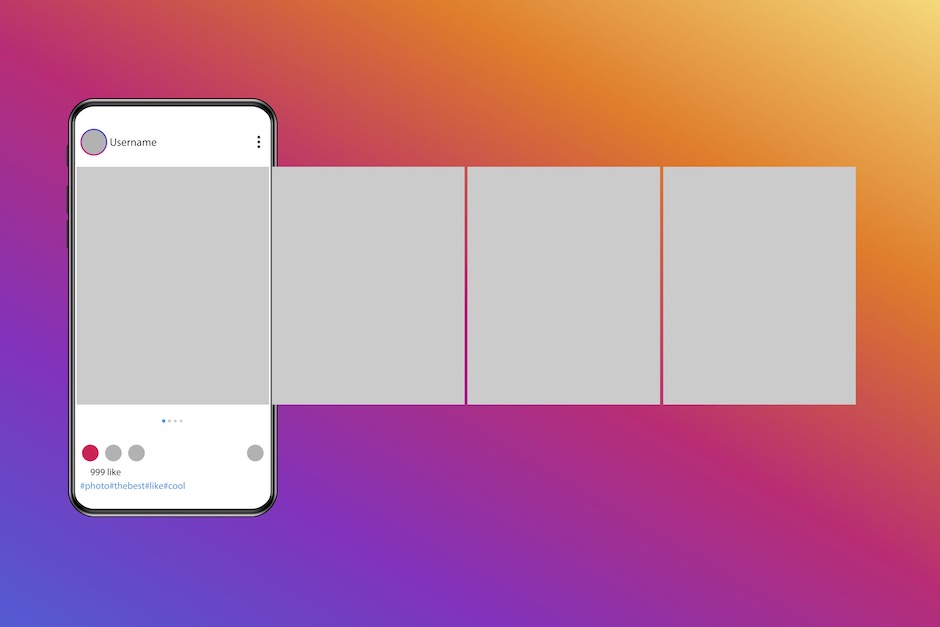
Follow these steps to remove a single image or video from your carousel post:
Step 1: Open Instagram and go to your profile.
Step 2: Find the carousel post containing the photo you want to remove.
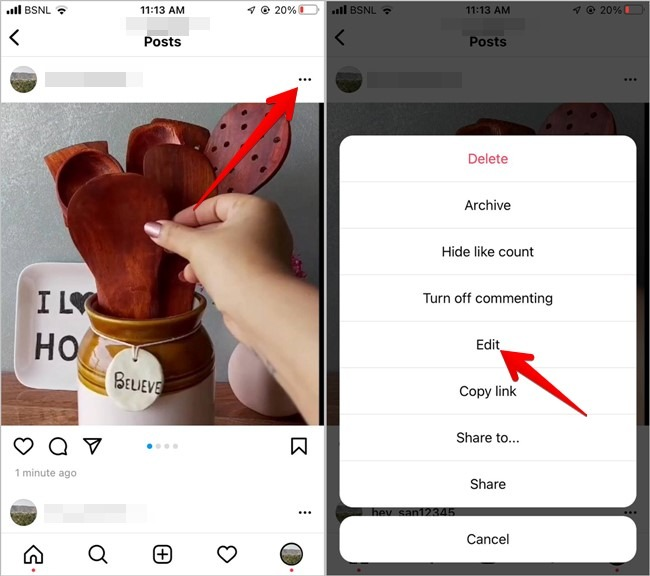
Step 3: Tap the three-dot menu (⋯) in the top-right corner of the post and select "Edit."
Step 4: Swipe through the carousel to find the photo you want to delete.
Step 5: Tap and hold the photo's thumbnail at the bottom of the screen until the "Delete" option appears.
Step 6: Tap "Delete" and confirm when prompted. (Note: This cannot be undone.)
Step 7: Review the remaining photos, rearrange if needed by dragging thumbnails, then tap "Done" or "✔" to save.
Important: Your carousel must have at least 2 images remaining. You cannot delete photos down to a single image, if you need to do that, you'll need to delete the entire post and repost.
Troubleshooting: Can't Delete a Carousel Photo?
If the delete option isn't showing up, try these fixes:
Update your appMake sure you're running the latest version of Instagram. This feature requires a recent app version.
Check your connectionA weak internet connection can prevent the edit screen from loading properly. Switch between Wi-Fi and mobile data and try again.
Restart the appForce close Instagram and reopen it. This clears temporary glitches that can block editing features.
Two-photo minimumRemember, you can't delete a photo if it would leave the carousel with only one image. The minimum is two.
Contact Instagram SupportIf none of the above works, report the issue through Instagram's Help Center.
Alternative Ways to Fix a Carousel
Edit the Photo Instead
If the issue is a caption typo or a filter you want to change, you can edit the post without deleting any photos. Tap "Edit" from the three-dot menu and make your changes, adjust the caption, tag people, or update the location.
Repost Without the Unwanted Photo

If you can't delete the specific photo through the edit screen, your fallback option is to delete the entire post and create a new carousel without the unwanted image. Copy your caption first before deleting so you can reuse it.
Archive Instead of Delete
Not sure you want to permanently delete? Instagram's Archive feature removes the post from your profile without deleting it. You can restore archived posts at any time. Go to your profile, tap the menu, and select "Archive" to view or restore archived content.
Tips for Managing Instagram Carousels
Plan your order carefullyPut your most attention-grabbing image first to draw viewers in. Use subsequent slides to provide context, details, or a call-to-action.

Review before postingDouble-check every photo in the carousel before hitting publish. It's much easier to catch mistakes beforehand than to edit after posting.
Use Instagram InsightsInstagram Insights shows you how each carousel performs in terms of engagement, reach, and impressions. Use this data to understand what your audience responds to and improve future carousels.
FAQs
Can you delete one photo from an Instagram carousel?
Yes. Open the post, tap the three-dot menu, select "Edit," then tap and hold the photo's thumbnail to reveal the delete option. The carousel must have at least 2 remaining photos.
Why can't I see the delete option on my carousel photo?
Make sure your Instagram app is updated to the latest version. This feature was added in a 2023 update and requires a recent app version to work.
Can I rearrange photos in an existing Instagram carousel?
Yes. While in edit mode, you can drag and drop the photo thumbnails at the bottom of the screen to rearrange the order.
What happens to likes and comments if I delete a carousel photo?
Likes and comments on the overall post are preserved. However, if someone commented specifically about the deleted photo, that context will be lost.
Can I add new photos to an existing carousel?
No. Instagram currently does not allow adding new photos to an already-published carousel. You can only delete or rearrange existing ones.
Wrapping Up
Deleting a single photo from an Instagram carousel is straightforward once you know where to find the option. Just make sure your app is updated, and remember the two-photo minimum rule. If all else fails, archiving or reposting gives you a clean fallback.





Head of Content at Feedbird, where she helps thousands of small businesses turn social media into a steady source of customers. Ten years in content and SEO, still obsessed with what actually makes people click.